BT Remote lets you drive WeatherGPX from the handlebars with a small Bluetooth remote: zoom the map in and out, recenter it in your direction of travel, flip to the OBD2 dashboard. No hand off the grip, no glove off, no screen tapping in the wet.
What you need
An Android phone with Chrome, or WeatherGPX installed as an app. Tested there; on iPhone the media buttons are not handed to web pages, so treat it as untested.
A Bluetooth remote that sends media keys or keyboard keys. Around 10 to 15 euros on the usual marketplaces.
Something to hold it on the bar. Most of these remotes ship with a clip or a rubber strap.
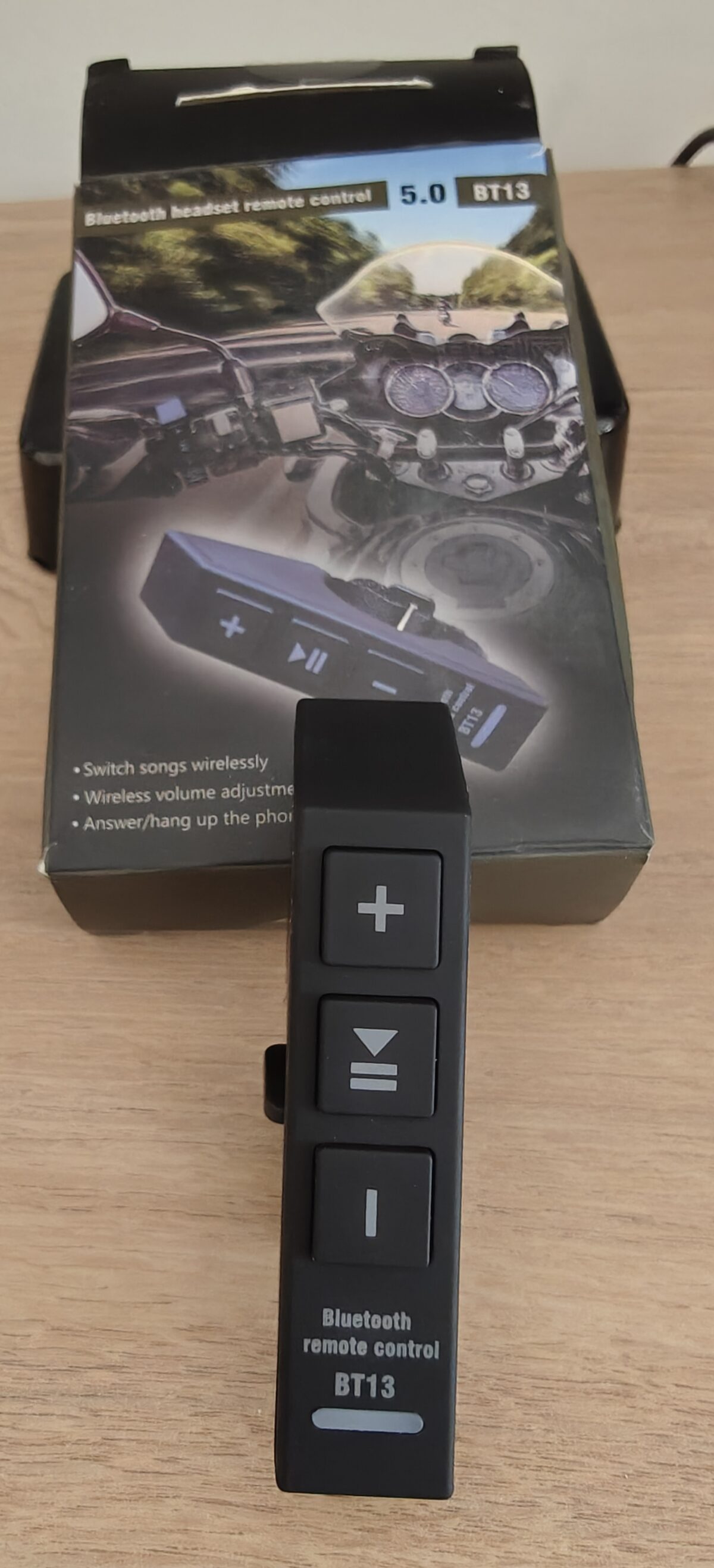
The remote we ride with: BT13
Tap to enlarge
Sold as "BT13 Bluetooth headset remote control 5.0" or "wireless media button", around 10 euros. It is the one used to develop and ride-test this feature, and the one WeatherGPX ships a default mapping for.
Why it works well on a bike:
Three big buttons (+, play/pause, −) that you can find and press with winter gloves on.
A clip that grips a handlebar, a mirror stem or a jacket strap.
It sends the three standard media keys, which is exactly what WeatherGPX listens for.
Its one quirk: the two end buttons send nothing at all on a double press, only the middle button supports one. The setup wizard knows this and moves on by itself.
Which remotes work
Worth understanding, because it explains what to buy. A Bluetooth remote is really a tiny keyboard. Two families reach a web page:
Keyboard remotes (page turners, presenter clickers): arrows, Page Up / Page Down, Enter. These always reach the page.
Media remotes (previous / play / next, volume): Android sends these keys to whichever app last played audio. That is why Remote mode plays a silent audio loop: it makes WeatherGPX that app, and the keys start arriving.
Both families are supported, and the wizard learns whatever your buttons happen to send. Cheap media remotes are the ones most navigation apps cannot use, so if you already own one, try it before buying anything.
Remote
Notes
✓
BT13, 3 buttons, Bluetooth 5.0
Ride-tested, default mapping built in
~
Other media remotes, page turners, presenter clickers
Should work. Any button that arrives as a key can be learned
~
Camera shutter remotes
Usually send Volume Up, so one usable button
✕
Remotes that need their own app, or that pair to an intercom instead of the phone
Their keys never reach the browser
Tried one that works, or one that does not? Tell us and it goes in the list: info@weathergpx.com.
Set it up
1
Pair the remote in the phone's Bluetooth settings, the normal way. Hold its button until it blinks, then pick it from the list (BT13 or similar).
2
In WeatherGPX, open the Extra apps tab (⋯) and expand BT Remote.
3
Switch on Remote mode. Press a button: the map should react, and the panel shows the last press it received.
4
Not a BT13, or you want other actions? Tap Configure remote.
Remote mode is not remembered. Switching it on has to start the silent audio, and a browser only allows that right after a tap, so you switch it on once per ride.
Default mapping
This is what a BT13 does out of the box, no configuration needed:
Button
Action
+
Zoom in
−
Zoom out
Middle button, one press
Recenter on your position, map turned in your direction of travel
Middle button, double press
Flip between the map and the OBD2 dashboard, and back
Holding a zoom button keeps zooming. The double press needs about a third of a second to be recognised as a double rather than a single, which is why the flip answers a touch later than the other buttons.
Configure your own buttons
Configure remote opens a two-step wizard.
Step 1, detect. Tell it how many buttons your remote has (1 to 6), tap Detect buttons and follow the prompts: press button 1, then double press button 1, then button 2, and so on. Buttons that answer a double press are marked and will get a second action. If a button sends nothing on a double press, like the BT13 end buttons, the wizard waits 5 seconds and moves on by itself. A test box underneath shows live what the app receives, including keys it does not recognise.
Step 2, assign. Give every button an action: zoom in, zoom out, recenter, OBD2 dashboard, north / direction-of-travel toggle, or nothing. Double-press capable buttons get a second slot. Save, and the mapping is stored on this phone only. Default puts the BT13 mapping back.
Zoom feels backwards? Nothing to debug: open the wizard, go to step 2 and swap the two actions.
Good to know
The remote acts while WeatherGPX is on screen. It is not a phone-wide remote.
Starting music in another app takes the buttons back, and Remote mode then switches itself off rather than pretending to work.
An OBD2 dongle and an intercom can stay connected at the same time. Ride-tested with both, the keys keep arriving.
With a remote connected, Android may treat it as a hardware keyboard and hide the on-screen one. Bring it back under Settings > Physical keyboard > Use on-screen keyboard.
Nothing happens at all? Check the remote is still paired and awake (they sleep after a while), that Remote mode is on, and that no other app is playing audio.
First press after a long quiet stretch used to be swallowed, showing the phone's volume bar instead of acting, with the second press working normally. That is fixed: the app now keeps its claim on the media buttons alive while Remote mode is on, and also accepts the press through the channel Android uses when it wakes a dormant app. If you ever see it again, tell us which remote and roughly how long you had left it alone.
La Télécommande BT permet de piloter WeatherGPX depuis le guidon avec une petite télécommande Bluetooth : zoomer et dézoomer la carte, la recentrer dans le sens de la marche, basculer vers le tableau de bord OBD2. Sans lâcher la poignée, sans retirer un gant, sans toucher un écran mouillé.
Ce qu'il vous faut
Un téléphone Android avec Chrome, ou WeatherGPX installé comme application. C'est là que c'est testé ; sur iPhone les touches multimédia ne sont pas transmises aux pages web, considérez donc que ce n'est pas supporté.
Une télécommande Bluetooth qui envoie des touches multimédia ou des touches clavier. Environ 10 à 15 euros sur les places de marché habituelles.
De quoi la fixer au guidon. La plupart sont livrées avec un clip ou une sangle caoutchouc.
Notre télécommande de référence : la BT13
Toucher pour agrandir
Vendue sous le nom « BT13 Bluetooth headset remote control 5.0 » ou « bouton multimédia sans fil », autour de 10 euros. C'est celle qui a servi à développer et à tester la fonction en roulant, et celle dont WeatherGPX embarque la configuration par défaut.
Pourquoi elle convient bien à la moto :
Trois gros boutons (+, lecture/pause, −) que l'on trouve et enfonce avec des gants d'hiver.
Un clip qui tient sur un guidon, une tige de rétroviseur ou une sangle de blouson.
Elle envoie les trois touches multimédia standard, exactement ce que WeatherGPX écoute.
Sa seule bizarrerie : les deux boutons d'extrémité n'envoient strictement rien sur un double appui, seul le bouton central en gère un. L'assistant de configuration le sait et passe au suivant tout seul.
Quelles télécommandes fonctionnent
Cela vaut la peine de comprendre, parce que cela dit quoi acheter. Une télécommande Bluetooth est en réalité un mini-clavier. Deux familles atteignent une page web :
Les télécommandes clavier (tourne-pages, télécommandes de présentation) : flèches, Page précédente / Page suivante, Entrée. Celles-ci atteignent toujours la page.
Les télécommandes multimédia (précédent / lecture / suivant, volume) : Android envoie ces touches à l'application qui a joué du son en dernier. D'où la boucle audio silencieuse du Mode télécommande : elle fait de WeatherGPX cette application, et les touches commencent à arriver.
Les deux familles sont supportées, et l'assistant apprend ce que vos boutons envoient réellement. Les télécommandes multimédia bon marché sont justement celles que la plupart des applis de navigation ne savent pas utiliser : si vous en avez déjà une, essayez-la avant d'acheter quoi que ce soit.
Télécommande
Remarques
✓
BT13, 3 boutons, Bluetooth 5.0
Testée en roulant, configuration par défaut intégrée
~
Autres télécommandes multimédia, tourne-pages, télécommandes de présentation
Devraient fonctionner. Tout bouton qui arrive comme une touche peut être appris
~
Déclencheurs photo
Envoient généralement Volume +, donc un seul bouton utilisable
✕
Télécommandes qui exigent leur propre application, ou qui s'appairent à un intercom plutôt qu'au téléphone
Leurs touches n'atteignent jamais le navigateur
Vous en avez essayé une qui marche, ou qui ne marche pas ? Dites-le nous et elle rejoindra la liste : info@weathergpx.com.
Mise en route
1
Appairez la télécommande dans les réglages Bluetooth du téléphone, normalement. Maintenez son bouton jusqu'à ce qu'elle clignote, puis choisissez-la dans la liste (BT13 ou similaire).
2
Dans WeatherGPX, ouvrez le panneau Extra apps (⋯) et dépliez Télécommande BT.
3
Activez le Mode télécommande. Appuyez sur un bouton : la carte doit réagir, et le panneau affiche le dernier appui reçu.
4
Ce n'est pas une BT13, ou vous voulez d'autres actions ? Touchez Configurer.
Le mode télécommande n'est pas mémorisé. L'activer doit démarrer l'audio silencieux, et un navigateur ne l'autorise qu'immédiatement après un toucher : vous l'activez donc une fois par sortie.
Configuration par défaut
Voici ce que fait une BT13 telle quelle, sans rien configurer :
Bouton
Action
+
Zoom avant
−
Zoom arrière
Bouton central, appui simple
Recentrer sur votre position, carte orientée dans le sens de la marche
Bouton central, double appui
Basculer entre la carte et le tableau de bord OBD2, et retour
Maintenir un bouton de zoom continue de zoomer. Le double appui demande environ un tiers de seconde pour être reconnu comme double plutôt que simple, d'où la réponse légèrement différée de la bascule par rapport aux autres boutons.
Configurer vos propres boutons
Configurer ouvre un assistant en deux étapes.
Étape 1, détection. Indiquez le nombre de boutons de votre télécommande (1 à 6), touchez Détecter les boutons et suivez les invites : appuyez sur le bouton 1, puis faites un double appui sur le bouton 1, puis le bouton 2, et ainsi de suite. Les boutons qui répondent au double appui sont marqués et recevront une seconde action. Si un bouton n'envoie rien au double appui, comme les boutons d'extrémité de la BT13, l'assistant attend 5 secondes et passe au suivant de lui-même. Une zone de test en dessous montre en direct ce que reçoit l'application, y compris les touches qu'elle ne reconnaît pas.
Étape 2, attribution. Donnez une action à chaque bouton : zoom avant, zoom arrière, recentrer, tableau de bord OBD2, bascule nord / sens de la marche, ou rien. Les boutons capables du double appui reçoivent une seconde case. Enregistrez : la configuration est stockée sur ce téléphone uniquement. Défaut rétablit la configuration BT13.
Le zoom est à l'envers ? Rien à réparer : ouvrez l'assistant, allez à l'étape 2 et intervertissez les deux actions.
Bon à savoir
La télécommande agit tant que WeatherGPX est à l'écran. Ce n'est pas une télécommande pour tout le téléphone.
Lancer de la musique dans une autre application reprend les boutons, et le mode télécommande se désactive alors de lui-même plutôt que de faire semblant de fonctionner.
Un boîtier OBD2 et un intercom peuvent rester connectés en même temps. Testé en roulant avec les deux, les touches continuent d'arriver.
Avec une télécommande connectée, Android peut la prendre pour un clavier physique et masquer le clavier à l'écran. Rétablissez-le dans Paramètres > Clavier physique > Afficher le clavier virtuel.
Rien ne se passe du tout ? Vérifiez que la télécommande est toujours appairée et réveillée (elles s'endorment au bout d'un moment), que le mode télécommande est activé, et qu'aucune autre application ne joue de son.
Le premier appui après un long moment sans rien toucher était avalé : la barre de volume du téléphone s'affichait au lieu de l'action, et le deuxième appui fonctionnait. C'est corrigé : l'appli maintient désormais sa priorité sur les boutons média tant que le mode télécommande est actif, et accepte aussi l'appui par le canal utilisé par Android quand il réveille une appli endormie. Si cela réapparaît, dites-nous quelle télécommande et combien de temps environ vous l'aviez laissée tranquille.
Retours
Vos retours sur les télécommandes (modèle, ce qui a marché ou non) sont les bienvenus : info@weathergpx.com.
Retour à l'aide WeatherGPX.
BT-Fernbedienung
Mit der BT-Fernbedienung steuerst du WeatherGPX vom Lenker aus mit einer kleinen Bluetooth-Fernbedienung: Karte hinein- und herauszoomen, in Fahrtrichtung zentrieren, zum OBD2-Cockpit wechseln. Ohne die Hand vom Griff, ohne Handschuh aus, ohne Tippen auf nassem Display.
Was du brauchst
Ein Android-Telefon mit Chrome oder WeatherGPX als installierte App. Dort ist es getestet; auf dem iPhone werden Medientasten nicht an Webseiten weitergegeben, gilt also als ungetestet.
Eine Bluetooth-Fernbedienung, die Medientasten oder Tastaturtasten sendet. Rund 10 bis 15 Euro auf den üblichen Marktplätzen.
Eine Befestigung am Lenker. Die meisten dieser Fernbedienungen kommen mit Clip oder Gummiband.
Unsere Referenz: die BT13
Zum Vergrößern tippen
Verkauft als „BT13 Bluetooth headset remote control 5.0“ oder „kabelloser Medienknopf“, etwa 10 Euro. Mit ihr wurde die Funktion entwickelt und auf der Straße getestet, und für sie bringt WeatherGPX eine fertige Standardbelegung mit.
Warum sie am Motorrad gut funktioniert:
Drei große Tasten (+, Play/Pause, −), die man auch mit Winterhandschuhen findet und drückt.
Ein Clip, der an Lenker, Spiegelfuß oder Jackenriemen hält.
Sie sendet die drei üblichen Medientasten, also genau das, worauf WeatherGPX hört.
Ihre einzige Eigenart: die beiden äußeren Tasten senden bei einem Doppeldruck gar nichts, nur die mittlere kann das. Der Einrichtungsassistent weiß das und geht von selbst weiter.
Welche Fernbedienungen funktionieren
Lohnt sich zu verstehen, denn es sagt dir, was du kaufen sollst. Eine Bluetooth-Fernbedienung ist im Grunde eine winzige Tastatur. Zwei Familien erreichen eine Webseite:
Tastatur-Fernbedienungen (Seitenblätterer, Präsenter): Pfeiltasten, Bild auf / Bild ab, Enter. Diese erreichen die Seite immer.
Medien-Fernbedienungen (zurück / Play / vor, Lautstärke): Android schickt diese Tasten an die App, die zuletzt Ton abgespielt hat. Deshalb spielt der Fernbedienungsmodus eine stumme Audioschleife: damit wird WeatherGPX zu dieser App, und die Tasten kommen an.
Beide Familien werden unterstützt, und der Assistent lernt, was deine Tasten tatsächlich senden. Günstige Medien-Fernbedienungen sind genau die, mit denen die meisten Navi-Apps nichts anfangen können. Wenn du schon eine hast, probiere sie aus, bevor du etwas kaufst.
Fernbedienung
Anmerkungen
✓
BT13, 3 Tasten, Bluetooth 5.0
Auf der Straße getestet, Standardbelegung eingebaut
~
Andere Medien-Fernbedienungen, Seitenblätterer, Präsenter
Sollten funktionieren. Jede Taste, die als Tastendruck ankommt, kann gelernt werden
~
Kamera-Auslöser
Senden meist Lauter, also eine nutzbare Taste
✕
Fernbedienungen mit eigener App oder solche, die sich mit einer Gegensprechanlage statt mit dem Telefon koppeln
Ihre Tasten erreichen den Browser nie
Eine getestet, die geht oder nicht geht? Schreib uns, sie kommt in die Liste: info@weathergpx.com.
Einrichten
1
Koppele die Fernbedienung in den Bluetooth-Einstellungen des Telefons, ganz normal. Taste halten, bis sie blinkt, dann aus der Liste wählen (BT13 oder ähnlich).
2
In WeatherGPX das Extra apps-Panel (⋯) öffnen und BT-Fernbedienung aufklappen.
3
Fernbedienungsmodus einschalten. Eine Taste drücken: die Karte sollte reagieren, und das Panel zeigt den zuletzt empfangenen Druck.
4
Keine BT13, oder du willst andere Aktionen? Auf Konfigurieren tippen.
Der Fernbedienungsmodus wird nicht gemerkt. Das Einschalten muss die stumme Audioschleife starten, und ein Browser erlaubt das nur direkt nach einem Fingertipp. Du schaltest ihn also einmal pro Ausfahrt ein.
Standardbelegung
Das macht eine BT13 ohne jede Konfiguration:
Taste
Aktion
+
Hineinzoomen
−
Herauszoomen
Mittlere Taste, einfacher Druck
Auf deine Position zentrieren, Karte in Fahrtrichtung gedreht
Mittlere Taste, Doppeldruck
Zwischen Karte und OBD2-Cockpit wechseln und zurück
Eine Zoomtaste gedrückt halten zoomt weiter. Der Doppeldruck braucht etwa eine drittel Sekunde, um als Doppel- und nicht als Einzeldruck erkannt zu werden. Deshalb antwortet der Wechsel eine Spur später als die anderen Tasten.
Eigene Tasten belegen
Konfigurieren öffnet einen Assistenten in zwei Schritten.
Schritt 1, erkennen. Gib an, wie viele Tasten deine Fernbedienung hat (1 bis 6), tippe auf Tasten erkennen und folge den Aufforderungen: Taste 1 drücken, dann Taste 1 doppelt drücken, dann Taste 2 und so weiter. Tasten, die auf einen Doppeldruck antworten, werden markiert und bekommen eine zweite Aktion. Sendet eine Taste beim Doppeldruck nichts, wie die äußeren Tasten der BT13, wartet der Assistent 5 Sekunden und geht von selbst weiter. Ein Testfeld darunter zeigt live, was die App empfängt, auch nicht erkannte Tasten.
Schritt 2, zuordnen. Gib jeder Taste eine Aktion: hineinzoomen, herauszoomen, zentrieren, OBD2-Cockpit, Nord / Fahrtrichtung umschalten oder nichts. Doppeldruck-fähige Tasten bekommen einen zweiten Platz. Speichern: die Belegung liegt nur auf diesem Telefon. Standard stellt die BT13-Belegung wieder her.
Zoom verkehrt herum? Nichts kaputt: Assistent öffnen, Schritt 2, die beiden Aktionen tauschen.
Gut zu wissen
Die Fernbedienung wirkt, solange WeatherGPX auf dem Bildschirm ist. Sie steuert nicht das ganze Telefon.
Musik in einer anderen App holt sich die Tasten zurück, der Fernbedienungsmodus schaltet sich dann selbst ab, statt Funktion vorzutäuschen.
Ein OBD2-Adapter und eine Gegensprechanlage dürfen gleichzeitig verbunden sein. Mit beiden auf der Straße getestet, die Tasten kommen weiter an.
Bei verbundener Fernbedienung hält Android sie eventuell für eine echte Tastatur und blendet die Bildschirmtastatur aus. Zurückholen unter Einstellungen > Physische Tastatur > Bildschirmtastatur anzeigen.
Es passiert gar nichts? Prüfe, ob die Fernbedienung noch gekoppelt und wach ist (sie schlafen nach einer Weile ein), ob der Fernbedienungsmodus an ist und ob keine andere App Ton abspielt.
Der erste Druck nach einer langen ruhigen Strecke wurde verschluckt: statt der Aktion erschien die Lautstärkeleiste des Telefons, der zweite Druck funktionierte dann. Das ist behoben: die App hält ihren Anspruch auf die Medientasten jetzt aufrecht, solange der Fernbedienungsmodus an ist, und nimmt den Druck auch über den Kanal an, den Android beim Aufwecken einer ruhenden App benutzt. Falls es wieder auftritt, sag uns welche Fernbedienung und wie lange du sie etwa nicht benutzt hattest.
Il Telecomando BT ti permette di guidare WeatherGPX dal manubrio con un piccolo telecomando Bluetooth: zoom avanti e indietro sulla mappa, ricentrarla nel senso di marcia, passare al cruscotto OBD2. Senza staccare la mano dalla manopola, senza togliere un guanto, senza toccare uno schermo bagnato.
Cosa serve
Un telefono Android con Chrome, oppure WeatherGPX installato come app. È lì che è stato provato; su iPhone i tasti multimediali non vengono passati alle pagine web, quindi consideralo non supportato.
Un telecomando Bluetooth che invii tasti multimediali o tasti di tastiera. Circa 10 o 15 euro sui soliti marketplace.
Qualcosa per fissarlo al manubrio. Quasi tutti arrivano con una clip o un elastico in gomma.
Il nostro riferimento: il BT13
Tocca per ingrandire
Venduto come «BT13 Bluetooth headset remote control 5.0» o «pulsante multimediale senza fili», intorno ai 10 euro. È quello con cui la funzione è stata sviluppata e provata su strada, ed è quello per cui WeatherGPX include una mappatura predefinita.
Perché funziona bene in moto:
Tre pulsanti grandi (+, play/pausa, −) che si trovano e si premono anche con i guanti invernali.
Una clip che tiene su manubrio, stelo dello specchietto o cinghia della giacca.
Invia i tre tasti multimediali standard, esattamente ciò che WeatherGPX ascolta.
La sua unica stranezza: i due pulsanti alle estremità non inviano proprio nulla su una doppia pressione, solo quello centrale la supporta. La procedura di configurazione lo sa e prosegue da sola.
Quali telecomandi funzionano
Vale la pena capirlo, perché dice cosa comprare. Un telecomando Bluetooth in realtà è una minuscola tastiera. Due famiglie arrivano a una pagina web:
I telecomandi da tastiera (voltapagine, puntatori da presentazione): frecce, Pag su / Pag giù, Invio. Questi arrivano sempre alla pagina.
I telecomandi multimediali (precedente / play / successivo, volume): Android manda questi tasti all'app che ha riprodotto audio per ultima. Ecco perché la Modalità telecomando riproduce un audio silenzioso in loop: rende WeatherGPX quell'app, e i tasti iniziano ad arrivare.
Entrambe le famiglie sono supportate, e la procedura impara ciò che i tuoi pulsanti inviano davvero. I telecomandi multimediali economici sono proprio quelli che la maggior parte delle app di navigazione non riesce a usare: se ne hai già uno, provalo prima di comprare altro.
Telecomando
Note
✓
BT13, 3 pulsanti, Bluetooth 5.0
Provato su strada, mappatura predefinita inclusa
~
Altri telecomandi multimediali, voltapagine, puntatori
Dovrebbero funzionare. Qualsiasi pulsante che arrivi come tasto può essere appreso
~
Telecomandi per scatto fotografico
Di solito inviano Volume +, quindi un solo pulsante utilizzabile
✕
Telecomandi che richiedono la loro app, o che si accoppiano a un interfono invece che al telefono
I loro tasti non arrivano mai al browser
Ne hai provato uno che funziona, o che non funziona? Scrivici e finisce nella lista: info@weathergpx.com.
Come iniziare
1
Accoppia il telecomando nelle impostazioni Bluetooth del telefono, in modo normale. Tieni premuto il suo pulsante finché lampeggia, poi scegli dall'elenco (BT13 o simile).
2
In WeatherGPX apri il pannello Extra apps (⋯) ed espandi Telecomando BT.
3
Attiva la Modalità telecomando. Premi un pulsante: la mappa deve reagire, e il pannello mostra l'ultima pressione ricevuta.
4
Non è un BT13, o vuoi altre azioni? Tocca Configura.
La modalità telecomando non viene ricordata. Attivarla deve avviare l'audio silenzioso, e un browser lo permette solo subito dopo un tocco: la attivi quindi una volta per uscita.
Mappatura predefinita
Ecco cosa fa un BT13 appena estratto dalla scatola, senza configurare nulla:
Pulsante
Azione
+
Zoom avanti
−
Zoom indietro
Pulsante centrale, pressione singola
Ricentra sulla tua posizione, mappa girata nel senso di marcia
Pulsante centrale, doppia pressione
Passa dalla mappa al cruscotto OBD2 e ritorno
Tenere premuto un pulsante di zoom continua a zoomare. La doppia pressione richiede circa un terzo di secondo per essere riconosciuta come doppia invece che singola: per questo il passaggio risponde un attimo dopo rispetto agli altri pulsanti.
Configurare i tuoi pulsanti
Configura apre una procedura in due passi.
Passo 1, rilevamento. Indica quanti pulsanti ha il telecomando (da 1 a 6), tocca Rileva pulsanti e segui le istruzioni: premi il pulsante 1, poi fai una doppia pressione sul pulsante 1, poi il pulsante 2 e così via. I pulsanti che rispondono alla doppia pressione vengono marcati e riceveranno una seconda azione. Se un pulsante non invia nulla alla doppia pressione, come quelli alle estremità del BT13, la procedura aspetta 5 secondi e prosegue da sola. Un riquadro di prova sotto mostra in diretta cosa riceve l'app, compresi i tasti che non riconosce.
Passo 2, assegnazione. Dai a ogni pulsante un'azione: zoom avanti, zoom indietro, ricentra, cruscotto OBD2, nord / senso di marcia, oppure niente. I pulsanti capaci di doppia pressione ricevono una seconda casella. Salva: la mappatura resta solo su questo telefono. Predefinito rimette la mappatura BT13.
Lo zoom è invertito? Niente da riparare: apri la procedura, vai al passo 2 e scambia le due azioni.
Buono a sapersi
Il telecomando agisce mentre WeatherGPX è sullo schermo. Non è un telecomando per tutto il telefono.
Avviare la musica in un'altra app si riprende i pulsanti, e la modalità telecomando si spegne da sola invece di fingere di funzionare.
Un adattatore OBD2 e un interfono possono restare connessi allo stesso tempo. Provato su strada con entrambi, i tasti continuano ad arrivare.
Con un telecomando connesso, Android può scambiarlo per una tastiera fisica e nascondere quella a schermo. Si riporta indietro da Impostazioni > Tastiera fisica > Mostra tastiera virtuale.
Non succede proprio nulla? Controlla che il telecomando sia ancora accoppiato e sveglio (dopo un po' si addormentano), che la modalità telecomando sia attiva e che nessun'altra app stia riproducendo audio.
La prima pressione dopo un lungo tratto senza toccare nulla veniva ingoiata: compariva la barra del volume del telefono invece dell'azione, e la seconda pressione funzionava. È risolto: l'app ora mantiene la priorità sui tasti multimediali finché la modalità telecomando è attiva, e accetta la pressione anche dal canale che Android usa quando risveglia un'app dormiente. Se dovesse ricapitare, dicci quale telecomando e per quanto tempo circa non l'avevi usato.
El Mando BT te permite manejar WeatherGPX desde el manillar con un pequeño mando Bluetooth: acercar y alejar el mapa, recentrarlo en el sentido de la marcha, cambiar al panel OBD2. Sin soltar el puño, sin quitarte un guante, sin tocar una pantalla mojada.
Qué necesitas
Un teléfono Android con Chrome, o WeatherGPX instalado como app. Es donde está probado; en iPhone las teclas multimedia no llegan a las páginas web, así que dalo por no soportado.
Un mando Bluetooth que envíe teclas multimedia o teclas de teclado. Unos 10 o 15 euros en los sitios de venta habituales.
Algo para sujetarlo al manillar. Casi todos vienen con una pinza o una goma.
Nuestro mando de referencia: el BT13
Toca para ampliar
Se vende como «BT13 Bluetooth headset remote control 5.0» o «botón multimedia inalámbrico», por unos 10 euros. Es el que se ha usado para desarrollar y probar la función en carretera, y para el que WeatherGPX trae una asignación por defecto.
Por qué va bien en moto:
Tres botones grandes (+, play/pausa, −) que se encuentran y se pulsan con guantes de invierno.
Una pinza que agarra en el manillar, en el vástago del retrovisor o en una correa de la chaqueta.
Envía las tres teclas multimedia estándar, justo lo que WeatherGPX escucha.
Su única rareza: los dos botones de los extremos no envían absolutamente nada con una doble pulsación, solo el central la admite. El asistente de configuración lo sabe y sigue adelante solo.
Qué mandos funcionan
Merece la pena entenderlo, porque te dice qué comprar. Un mando Bluetooth es en realidad un teclado diminuto. Dos familias llegan a una página web:
Los mandos de teclado (pasapáginas, punteros de presentación): flechas, Re Pág / Av Pág, Intro. Estos llegan siempre a la página.
Los mandos multimedia (anterior / play / siguiente, volumen): Android manda esas teclas a la app que reprodujo audio por última vez. Por eso el Modo mando reproduce un bucle de audio silencioso: convierte a WeatherGPX en esa app, y las teclas empiezan a llegar.
Se admiten las dos familias, y el asistente aprende lo que tus botones envían realmente. Los mandos multimedia baratos son precisamente los que la mayoría de apps de navegación no puede aprovechar: si ya tienes uno, pruébalo antes de comprar nada.
Mando
Notas
✓
BT13, 3 botones, Bluetooth 5.0
Probado en carretera, asignación por defecto incluida
~
Otros mandos multimedia, pasapáginas, punteros
Deberían funcionar. Cualquier botón que llegue como tecla se puede aprender
~
Disparadores de cámara
Suelen enviar Subir volumen, o sea un botón útil
✕
Mandos que necesitan su propia app, o que se emparejan con un intercomunicador en vez del teléfono
Sus teclas nunca llegan al navegador
¿Has probado uno que funciona, o que no? Cuéntanoslo y entra en la lista: info@weathergpx.com.
Puesta en marcha
1
Empareja el mando en los ajustes Bluetooth del teléfono, de la forma normal. Mantén pulsado su botón hasta que parpadee y elígelo en la lista (BT13 o similar).
2
En WeatherGPX abre el panel Extra apps (⋯) y despliega Mando BT.
3
Activa el Modo mando. Pulsa un botón: el mapa debe reaccionar, y el panel muestra la última pulsación recibida.
4
¿No es un BT13, o quieres otras acciones? Toca Configurar.
El modo mando no se recuerda. Activarlo tiene que arrancar el audio silencioso, y un navegador solo lo permite justo después de un toque: lo activas una vez por salida.
Asignación por defecto
Esto es lo que hace un BT13 tal cual, sin configurar nada:
Botón
Acción
+
Acercar
−
Alejar
Botón central, una pulsación
Recentrar en tu posición, mapa girado en el sentido de la marcha
Botón central, doble pulsación
Cambiar entre el mapa y el panel OBD2, y volver
Mantener pulsado un botón de zoom sigue acercando o alejando. La doble pulsación necesita alrededor de un tercio de segundo para distinguirse de una sencilla, por eso el cambio responde un pelín más tarde que los demás botones.
Configurar tus propios botones
Configurar abre un asistente de dos pasos.
Paso 1, detectar. Indica cuántos botones tiene tu mando (de 1 a 6), toca Detectar botones y sigue las indicaciones: pulsa el botón 1, luego haz una doble pulsación en el botón 1, luego el botón 2, y así. Los botones que responden a la doble pulsación quedan marcados y reciben una segunda acción. Si un botón no envía nada con la doble pulsación, como los de los extremos del BT13, el asistente espera 5 segundos y continúa solo. Un recuadro de prueba debajo muestra en vivo lo que recibe la app, incluidas las teclas que no reconoce.
Paso 2, asignar. Dale a cada botón una acción: acercar, alejar, recentrar, panel OBD2, norte / sentido de la marcha, o nada. Los botones capaces de doble pulsación reciben una segunda casilla. Guarda: la asignación se queda solo en este teléfono. Por defecto restablece la del BT13.
¿El zoom va al revés? Nada que arreglar: abre el asistente, ve al paso 2 e intercambia las dos acciones.
Conviene saber
El mando actúa mientras WeatherGPX está en pantalla. No es un mando para todo el teléfono.
Poner música en otra app recupera los botones, y entonces el modo mando se apaga solo en lugar de fingir que funciona.
Un adaptador OBD2 y un intercomunicador pueden seguir conectados a la vez. Probado en carretera con ambos, las teclas siguen llegando.
Con un mando conectado, Android puede tomarlo por un teclado físico y ocultar el de pantalla. Se recupera en Ajustes > Teclado físico > Mostrar teclado virtual.
¿No pasa absolutamente nada? Comprueba que el mando siga emparejado y despierto (se duermen al cabo de un rato), que el modo mando esté activado y que ninguna otra app esté reproduciendo audio.
La primera pulsación tras un buen rato sin tocar nada se perdía: aparecía la barra de volumen del teléfono en lugar de la acción, y la segunda pulsación sí funcionaba. Está corregido: la app mantiene ahora su prioridad sobre los botones multimedia mientras el modo mando está activo, y acepta además la pulsación por el canal que usa Android al despertar una app dormida. Si vuelve a pasar, dinos qué mando y cuánto tiempo lo habías dejado sin usar.